Implementing a component based design system in PowerBI


Implementing a Component-Based Design System in Power BI
Standard Power BI headers, buttons, and callouts often feel disconnected from an organization’s broader web presence. If you are building reports for a large enterprise, especially if it is going to be public facing, following a design system is essential for a cohesive user experience.
In this post, I’ll show you how to move away from manually drawing rectangles and text boxes in Power BI and instead move toward a component-based architecture using a database, HTML/CSS and the ‘HTML Content (Lite)’ visual.
This post is based on the repository at: https://github.com/mortie23/powerbi-web-components
Why use a Database for Design?
Hard-coding hex codes and font sizes into every Power BI report is a maintenance nightmare. By storing our UI components in a database table, we gain:
- Centralized Control: Update a brand color in one SQL table, and all reports refresh to match.
- High Fidelity: Recreate complex CSS layouts that the native Power BI UI simply can’t do.
- Consistency: Ensure every report uses the exact same design System header and padding.
The Architecture
- Postgres: Acts as the “Source of Truth” for our HTML snippets, in an enterprise this might be your data warehouse.
- Power BI Semantic Model: Fetches the HTML strings via a standard SQL connection.
- DAX: Dynamically selects the right component based on the report page or context, replacing templated variables where needed.
- HTML Content Visual: Renders the code directly on the canvas.
Setting up the Postgres Store
First, we create a schema to house our design assets.
-- Create a schema for your design system components
create schema if not exists design_system
;

-- Create the reference table
create table
  design_system.reference_web_component (
    component_id serial primary key
  , component_name varchar(100) not null
  , component_html text not null
  , last_updated timestamp default current_timestamp
  )
;
After we run this we see the table created in Postgres.
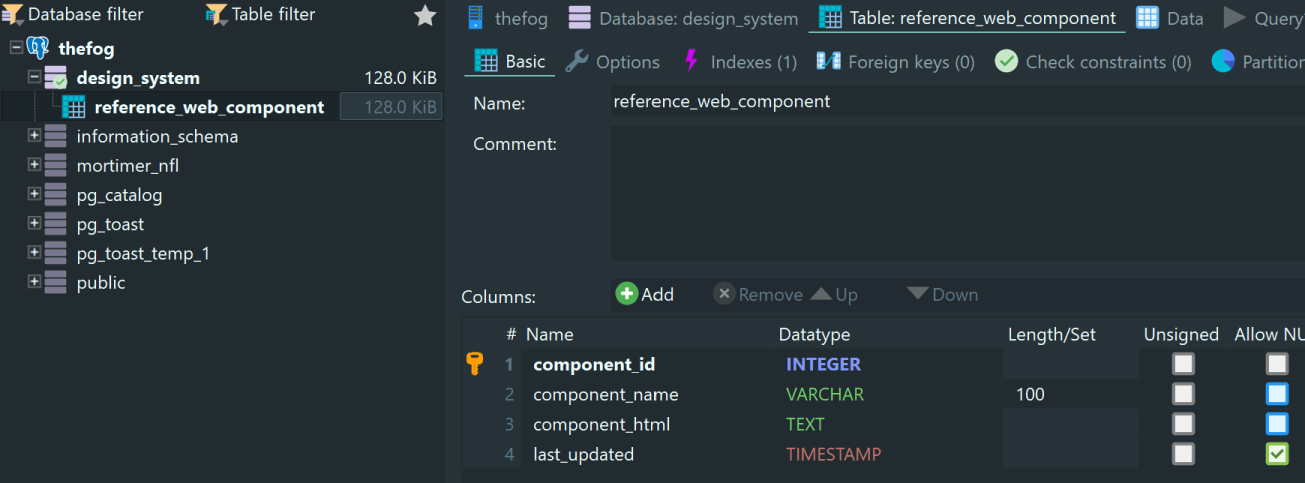
Now in PowerBI we need to get this data (along with our NFL data to create some visuals for the demonstration).
Example components
We are going to see if we can create Power BI reports that fit into the Gold Design System (AU) (formerly the DTA system) design system:
https://gold.designsystemau.org/, and the associated https://github.com/designsystemau/gold-design-system

We are going to change it a little to make it fit the common navigation of Power BI dashboards. We have a few options for how we add styles.
- Each component is self contained with all styles
- Host styles on a separate web server and import
For this example, for simplicity of architecture we will keep the styles self contained.
<html>

<style>
  body {
    margin: 0;
    font-family: -apple-system, BlinkMacSystemFont, "Segoe UI", Roboto, Helvetica, Arial, sans-serif;
    background: #f5f5f5;
  }

  .au-header {
    background: linear-gradient(to right, #313131, #585858);
    color: #fff;
    padding: 1.5rem 1rem;
    border-bottom: 1px solid rgba(255, 255, 255, 0.1);
  }

  .au-header__heading {
    max-width: 1200px;
    margin: 0 auto;
    font-size: 2rem;
    font-weight: 700;
    line-height: 1.25;
  }

  .header__badge {
    display: inline-block;
    font-size: 0.875rem;
    border: 1px solid rgba(255, 255, 255, 0.5);
    border-radius: 2rem;
    padding: 2px 10px;
    margin-left: 8px;
    vertical-align: middle;
    text-transform: lowercase;
    letter-spacing: 0.05em;
  }

  @media (max-width: 768px) {
    .au-header__heading {
      font-size: 1.5rem;
    }
  }
</style>

<header class="au-header" role="banner">
  <h1 class="au-header__heading">
    {{TITLE}} <span class="header__badge">beta</span>
  </h1>
</header>

</html>
Note the inclusion of {{TITLE}} within the H1 tag. This will be utilized later in conjunction with DAX to make the component reusable.
Let’s quickly view this component in a browser to see that it is rendering how we would like. For this I simple use the Live Server extension in VScode.

Great, this is just what we want. Now, to insert this into our Postgres table:
insert into
  design_system.reference_web_component (component_name, component_html)
values
  (
    'Gold Header'
  , '<html>
<style>
    body {
        margin: 0;
...
</html>
'
)
;
See we have given the component a name in the table, we will use this later in the DAX.
Use of the HTML components in Power BI
We need to use the HTML Content (Lite) visualization from the Viz store.

Now let’s render out some of our components.
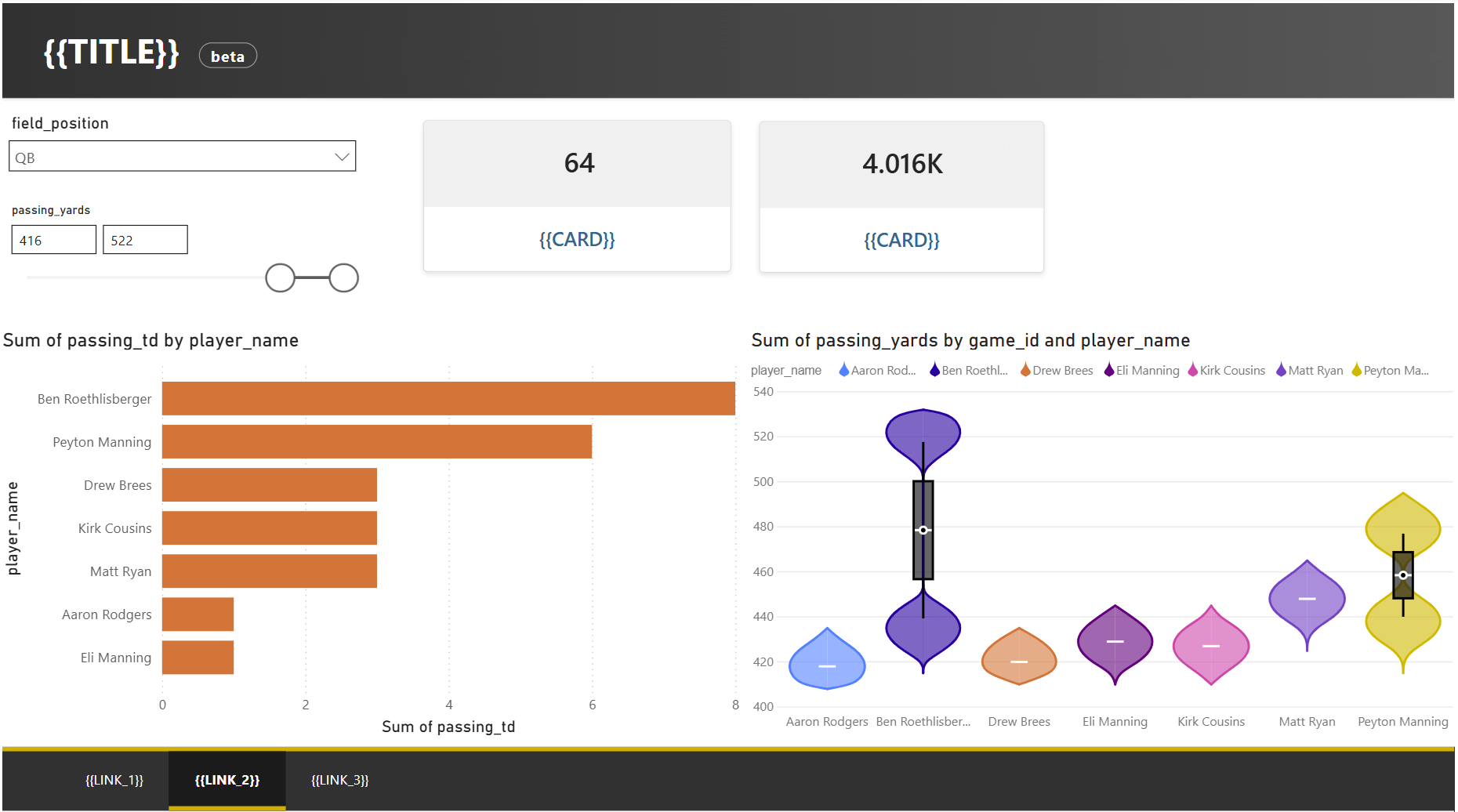
The HTML Content (Lite) visual renders the components nicely. But now it is time to make use of the templating we built into the components.
We create a new measure that replaces the {{TITLE}} with our own custom title for each page.
TitleBar =

   VAR BaseHTML = LOOKUPVALUE('design_system reference_web_component'[component_html], 'design_system reference_web_component'[component_name], "Gold Header")
   VAR Title = "NFL Quarterbacks (2014)"

   RETURN
   SUBSTITUTE(
         BaseHTML,
         "{{TITLE}}", Title
       )
Now let’s set the visuals to align with the colour accents in the visuals.
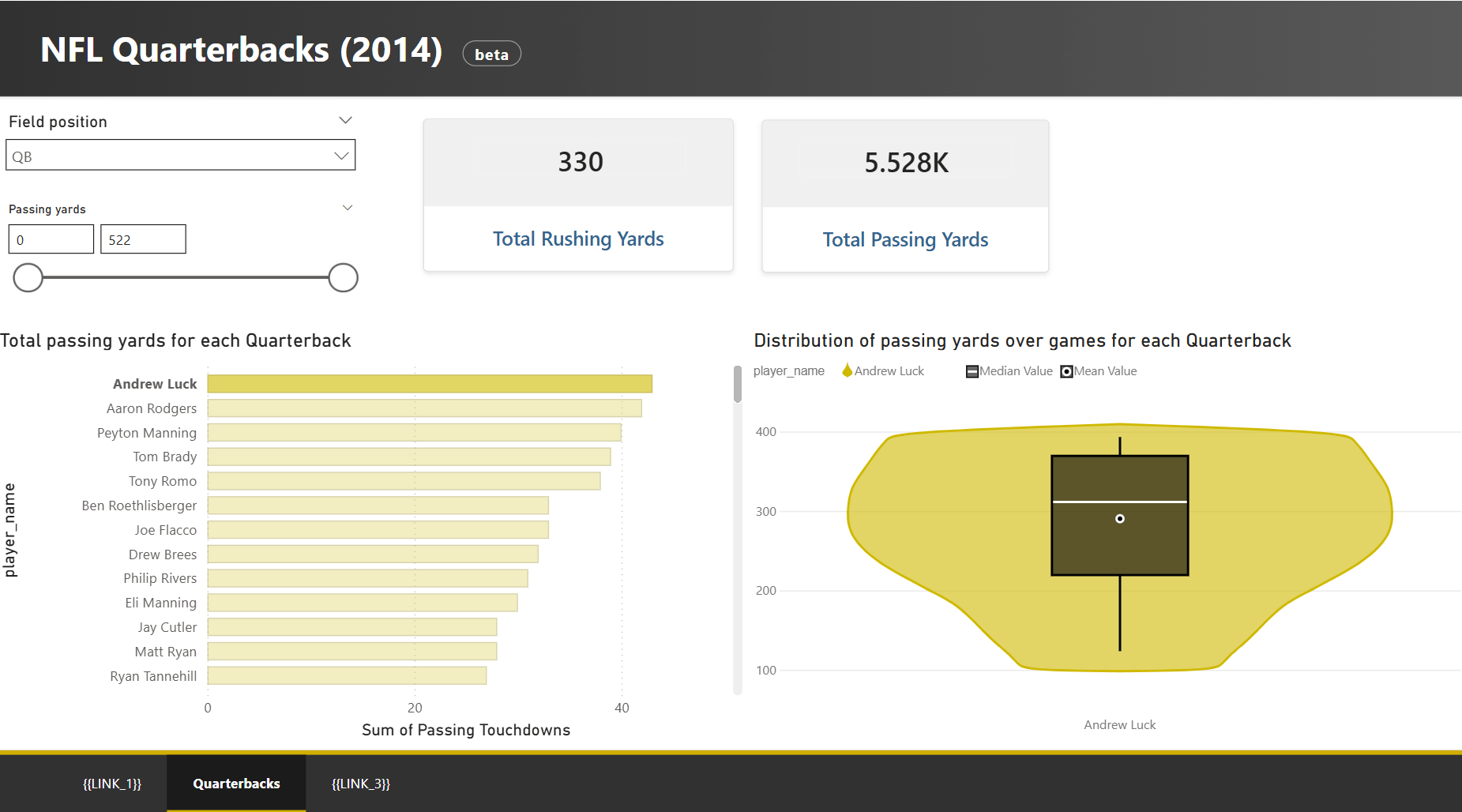
Now, let’s embed this in our public facing website.
